Outdated Items Report
If you update a model or property using a workflow or using a tool (e.g. well log upscaling tool or the property tool), that model or property is recognized as outdated by the application. The Outdated Items Report allows you to select a model, property, or tool and shows all the dependent models and properties in their current status.
You open the Outdated Items Report via Workspace > Panes > Outdated Items, or by pressing Ctrl+Alt+F1 on your keyboard. For a general overview of the relationships between models, see the big picture.
To update outdated models, rerun them manually using the respective workflow(s) or with the JewelScript Editor.
Dependency settings
Analysis direction Choose the direction in which the table is built from your item.
- Item -> Precedents The table is populated with the selected item at the bottom of the Item column. The models and properties used to create the item are listed above.
- Item -> Dependents The table is populated with the selected item at the top of the Item column. All models and properties dependent on the item are listed below.
Item type Use the drop-down list to select a type from the list of models, tools, or functions. Selecting an item type filters the possible items that are shown in the Item drop-down list.
Item Use the drop-down list to select an item from the list. The dependencies are shown in the table.
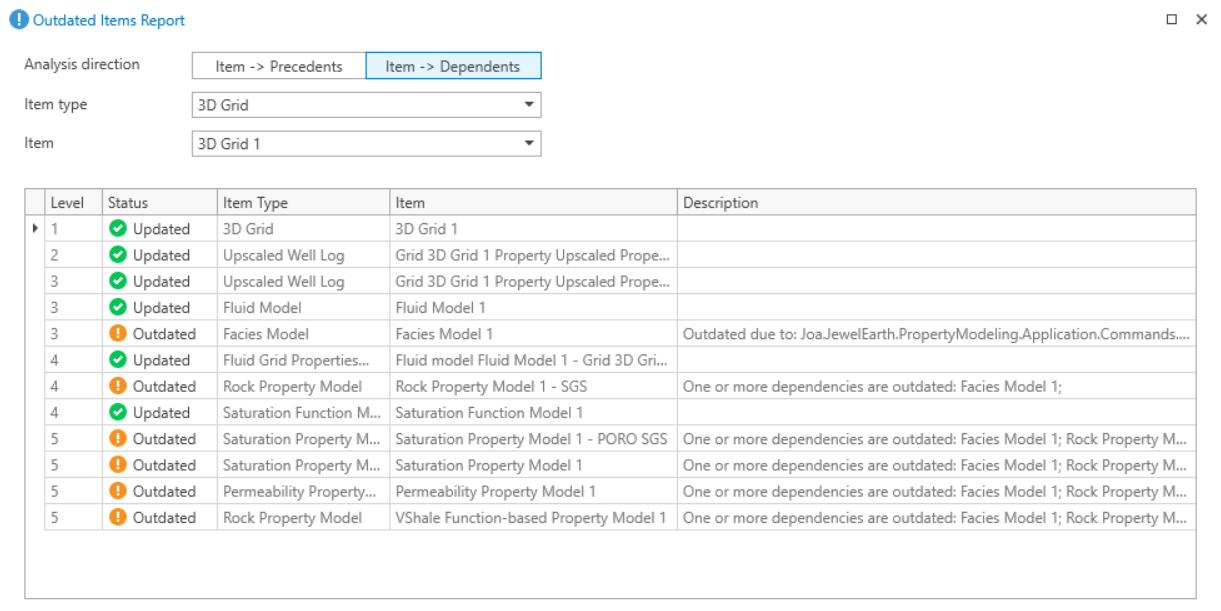
Outdated Items Report showing a 3D Grid and its dependencies click to enlarge
Table columns
The columns in the table can be rearranged and filtered. More options for sorting data in this table are available by right-clicking the column header area and selecting from the context menu.
Level A guideline for the suggested order in which you update outdated models.
Status The icons in the Outdated Items Report table indicate the following:
| Status is not displayed. | |

|
Dependencies that are out of date. |

|
Dependencies that are up to date. |
Item Type The high level model, tool or function that you see in the user interface.
Item The name of a specific precedent or dependent item.
Description Displays a detailed list of outdated dependencies. For up to date dependencies this cell is left blank.
Right-click column header options
More options for sorting data in this table are available by right-clicking the column header area and selecting from the context menu:
Sort Ascending Sorts the selected column in ascending order.
Sort Descending Sorts the column in descending order.
Clear sorting Clears the sorting.
Show Column Chooser This context menu is available on all spreadsheet views of this kind. This option allows you to remove / add columns from the spreadsheet. Click the option and notice the small customization dialog in the view. Remove a column header from the spreadsheet by unchecking the checkbox in front of the column name. It will disappear from the spreadsheet. You can also drag and drop the column header from the dialog back into the spreadsheet. The purpose is to customize the spreadsheet view, based on current requirements.
Hide Column Chooser Only available if Column Chooser window is open. It hides the Column Chooser window.
Show all columns Shows all columns again
Best Fit Resizes the selected column to fit the data exactly.
Best Fit (all columns) Resizes all columns to fit the data exactly.
Clear Filter Only available if a filter has been applied with Filter Editor. Removes the filter applied with Filter Editor.
Filter Editor... Opens the Filter Editor window.
Show Search Panel Opens a search panel at the top of the table.
Hide Search Panel Only available if the search panel is open at the top of the table. Select this option to close the search panel at the top of the table.